Everything from your first outline to a cutter on your print bed. New here? Start with the quick start, then read cutting vs. stamping. Those two sections cover how the app works.
 Preview
cube. Drag to spin the model, pinch to zoom.
Preview
cube. Drag to spin the model, pinch to zoom.
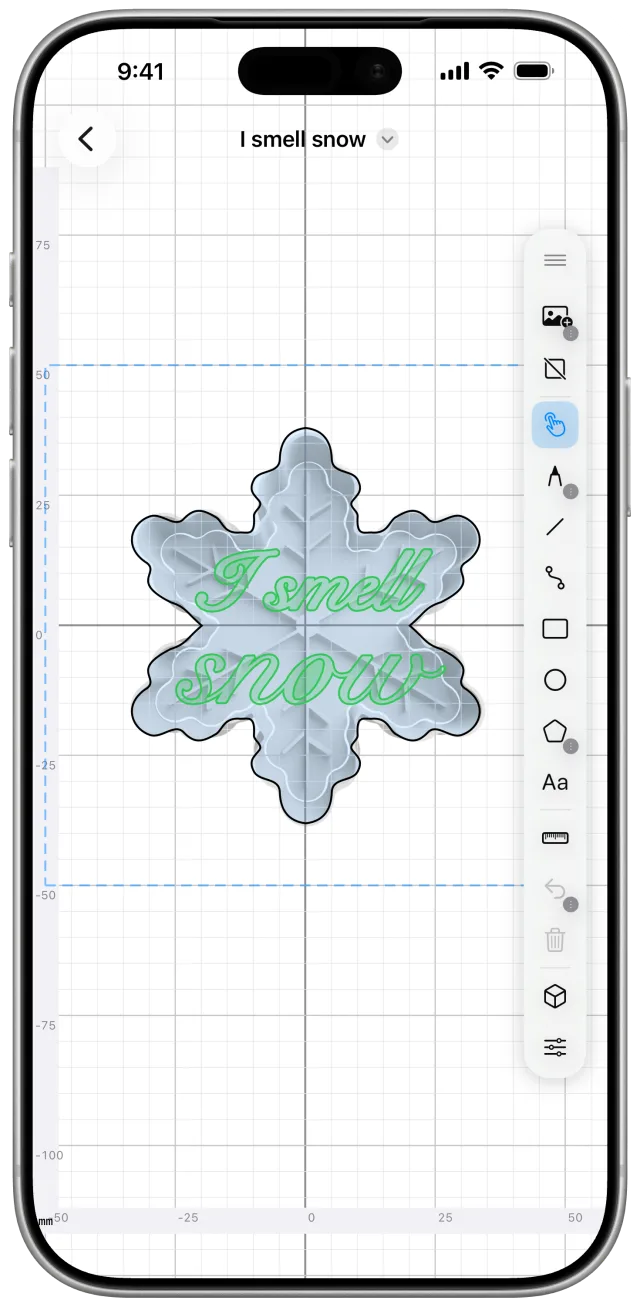
Your work saves automatically as you go. There's no save button.
CookieCaddie decides what each shape does from where it sits, so you never have to set it yourself:
The outermost closed shape. It becomes the blade and wall that cut all the way through the dough. Shown in blue.
Any closed shape or text inside the outline presses a filled indentation into the cookie's face. Shown in green.
An open line inside the outline doesn't need to be closed. It presses a groove as wide as the cutter's wall, which is good for whiskers, veins, or stitching.
To turn detail into a cut, move it outside the outline. You can check any shape's role by selecting it and opening the Inspector, where it's listed as Cutter Outline or Stamp Detail.
Why the cookie still pops out: stamp detail isn't held by a solid lid. Each piece hangs from its own thin strut back to the wall, so most of the top stays open and you can push a stuck cookie free with a finger.
Every tool lives in the floating palette on the canvas, from top to bottom:
 Import Image: add a photo to trace
 Mirror: symmetric drawing
 Select: move and edit shapes
 Pencil, Line, Curve, Rectangle, Circle, Polygon, Text: drawing tools
 Measuring Tool, Undo, Delete: helpersPreview: 3D view and export
 Inspector: sizes and cutter settings
 and it docks to the nearest edge of the screen. It runs vertically
on the sides and horizontally along the top or bottom.
and it docks to the nearest edge of the screen. It runs vertically
on the sides and horizontally along the top or bottom.
Draw freehand, and CookieCaddie smooths your stroke into clean curves. Finish where you started and the shape closes on its own. Touch and hold the Pencil button for Close Path, which closes the selected open shape.

Drag to draw a straight segment. Line ends snap onto nearby ends and stay joined. Connect lines end to end, and as soon as the last one closes the loop they merge into a single closed shape.

Drag to draw a curved segment with a gentle bend built in. Use Select to drag its handles and shape the curve. Curves snap and join like lines, so you can mix both in one outline.

Drag from one corner to the opposite corner. You can type an exact width and height in the Inspector.

Drag outward from the center. Set an exact radius in the Inspector.

Drag outward from the center to draw a regular polygon. Touch and hold the Polygon button to set the number of sides, from 3 (a triangle) to 12.

Tap where you want the text, then type. See Adding text.
With Snap to Grid on (in the Inspector), new points snap to the gridlines on screen. Zoom in for finer spacing, or zoom out for coarser.
Choose the Text
tool and tap inside your outline. A sheet opens with:
Text is stamped into the cookie like any other detail. To change it later, double-tap it with Select, or select it and tap Edit Text… in the Inspector. Editing redraws the whole text box in place, so any letters you nudged by hand go back to their original positions.
Why the letters look backwards in 3D: from the cutting side, the lettering reads backwards. That's what makes it press into the dough the right way round, just like a rubber stamp.
Tap Import Image
and pick a photo, such as a logo, a child's drawing, or a cutter you
already own. It appears faded behind the grid so you can draw over it
with any tool. The photo is only a guide and never becomes part of the
cutter.
Once a photo is in, touch and hold Import Image for:
Tip: use the measuring tool to scale the photo so a feature you know the size of measures correctly.
Tap Mirror
to cycle through Off → Top/Bottom → Left/Right → Both.
While it's on, you draw on one side and a mirrored copy appears on the
other. The side you can't draw on is greyed out.
Toggles a ruler you can drag across the canvas to measure any distance. It reads in millimeters or inches, whichever you choose in the Inspector.

Steps back one edit. Touch and hold it for Redo.

Removes the selected shape, plus its mirrored copy if it has one.
Tap Inspector
to open settings for the selected shape and for the cutter as a
whole.
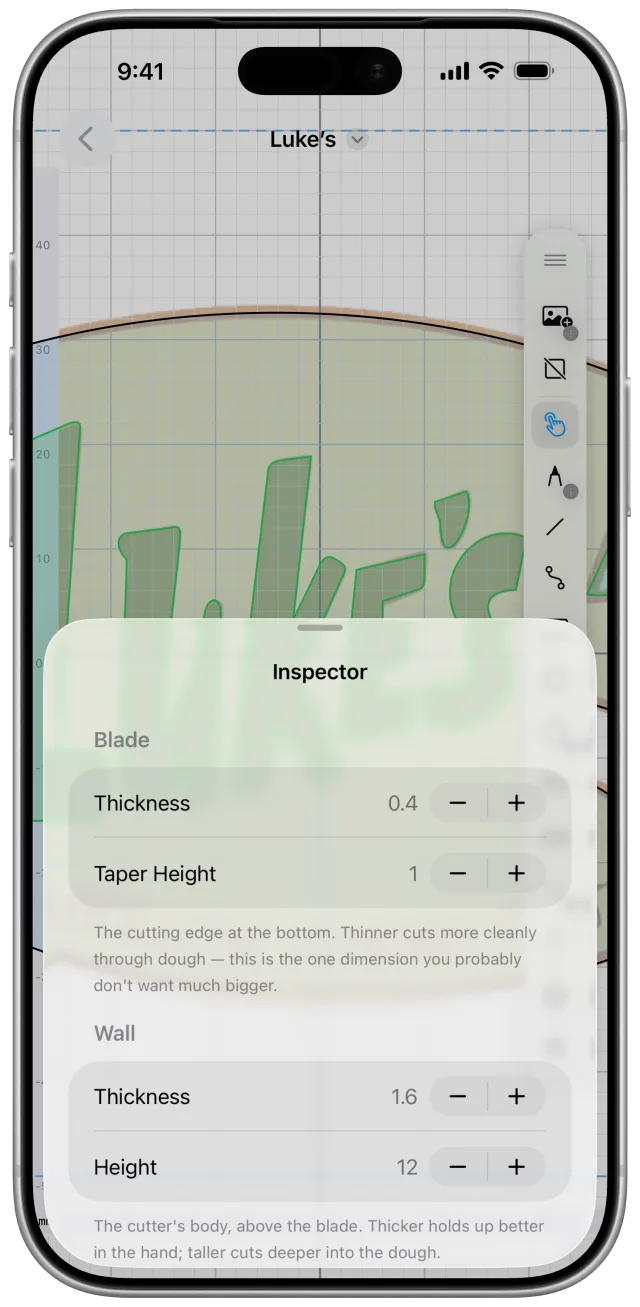
These apply to the whole cutter. All values are in millimeters.
| Setting | Default | Range | What it does |
|---|---|---|---|
| Blade thickness | 0.4 | 0.2–2.0 | The cutting edge. Thinner cuts dough more cleanly, so keep it thin. |
| Blade taper height | 1 | 0–5 | How far the edge tapers from blade to wall. |
| Wall thickness | 1.6 | 0.4–6.0 | The cutter's body. Thicker feels sturdier in the hand. |
| Wall height | 12 | 5–30 | Taller cuts deeper dough. |
| Flange width | 3 | 0–10 | The rim your palm presses on. It also sits on the print bed, so wider prints more steadily. |
| Flange height | 2 | 0–10 | How thick that rim is. |
| Stamp depth | 1.5 | 0.5–4.5 | How deep detail presses into dough rolled about 5 mm thick. |
Reset Profile to Defaults restores every value above.
Tap Preview
to see your cutter in 3D. Drag to rotate it and pinch to zoom.
Then tap the share button:
.cookiecutter):
your editable design, for backup, for sharing with another
CookieCaddie user, or for moving to another device.
.cookiecutter file from Files. You can also open one straight from AirDrop, Mail, or Files.